
Visualization with ggplot2
Last updated on 2026-09-29 | Edit this page
Estimated time: 35 minutes
Overview
Questions
- How do I create charts in R that look better than SPSS Chart Builder output?
- What is the ggplot2 “grammar of graphics” approach?
- How do I customize colors, labels, and themes?
Objectives
- Build bar charts, histograms, scatterplots, and line charts with ggplot2
- Customize plots with labels, colors, and themes for publication quality
- Compare ggplot2 output with SPSS Chart Builder equivalents
- Create faceted plots to compare groups

The grammar of graphics
In SPSS, you create charts through the Chart Builder dialog: you drag variables onto axes, pick a chart type, and click OK. The result is a finished chart, but customizing it requires clicking through many menus.
ggplot2 takes a fundamentally different approach called the grammar of graphics. Instead of picking a finished chart type, you build a plot layer by layer, like constructing a sentence:
- Data — what data frame are you plotting?
-
Aesthetics (
aes()) — which variables map to the x-axis, y-axis, color, size, etc.? -
Geometry (
geom_*()) — what visual marks represent the data (bars, points, lines)? -
Labels (
labs()) — what titles and axis labels should appear? -
Theme (
theme_*()) — what overall style should the plot have?
You combine these layers with the + operator. Let’s see
how this works in practice. First, let’s load our packages and data:
R
library(tidyverse)

visitors <- read_csv("data/aruba_visitors.csv")
Here is the simplest possible ggplot call — just the data and aesthetics, with no geometry yet:
R
ggplot(data = visitors, aes(x = origin, y = visitors_stayover))
This gives us an empty canvas with axes. Now we add a geometry layer:
R
ggplot(data = visitors, aes(x = origin, y = visitors_stayover)) +
  geom_col()
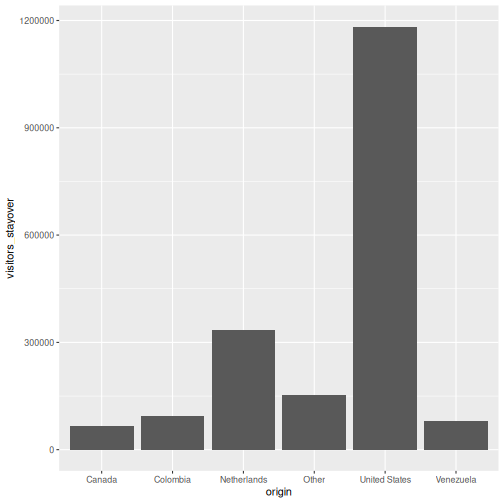
That is already a bar chart. The + operator is how you
add layers — think of it as stacking transparencies on top of each
other.
The + operator vs. the pipe
|>
The pipe |> passes data into a function. The
+ in ggplot2 adds layers to a plot. They look
similar but do different things. A common beginner mistake is using
|> where + is needed:
R
# WRONG --- this will produce an error
ggplot(visitors, aes(x = origin)) |> geom_bar()

# CORRECT
ggplot(visitors, aes(x = origin)) + geom_bar()
Common chart types
Below is a reference table mapping SPSS Chart Builder chart types to their ggplot2 equivalents:
| Chart type | SPSS menu path | ggplot2 geometry |
|---|---|---|
| Bar chart | Graphs > Chart Builder > Bar |
geom_bar() / geom_col()
|
| Histogram | Graphs > Chart Builder > Histogram | geom_histogram() |
| Scatterplot | Graphs > Chart Builder > Scatter/Dot | geom_point() |
| Line chart | Graphs > Chart Builder > Line | geom_line() |
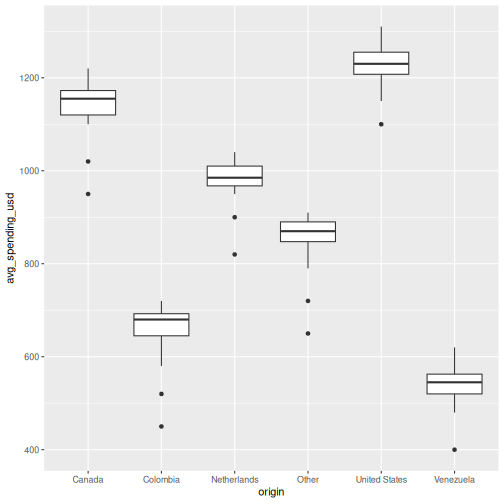
| Boxplot | Graphs > Chart Builder > Boxplot | geom_boxplot() |
Let’s work through each one using the Aruba visitors data.
Bar chart: geom_bar() and geom_col()
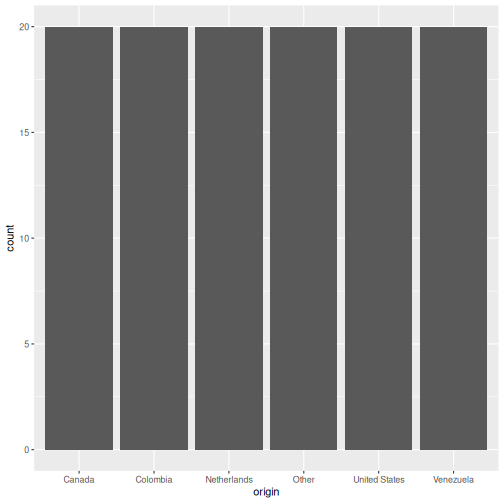
There are two bar chart geoms. Use geom_bar() when you
want R to count rows for you, and
geom_col() when you already have the values to
plot.
R
# geom_bar() counts the rows per origin (6 origins x 20 quarters = 20 rows each)
ggplot(visitors, aes(x = origin)) +
  geom_bar()
R
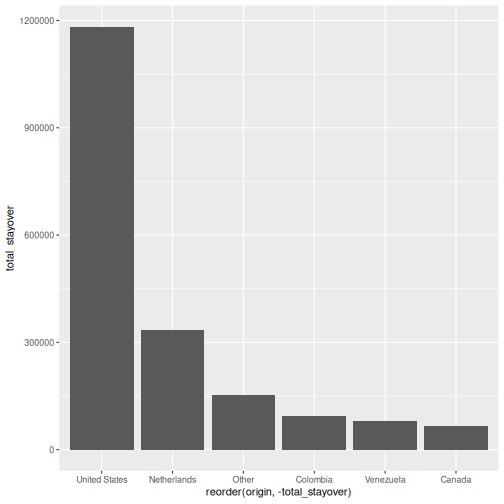
# geom_col() uses a pre-computed value on the y-axis
visitors_total <- visitors |>
  group_by(origin) |>
  summarise(total_stayover = sum(visitors_stayover))

ggplot(visitors_total, aes(x = reorder(origin, -total_stayover),
                            y = total_stayover)) +
  geom_col()
geom_bar()
vs. geom_col() — when to use which?
-
geom_bar()usesstat = "count"by default: it counts how many rows fall into each category. You only need anxaesthetic. -
geom_col()usesstat = "identity": it plots the actual value you supply. You need bothxandy.
In SPSS Chart Builder, when you drag a categorical variable to the
x-axis and a scale variable to the y-axis with “Mean” as the summary,
that is equivalent to first computing the mean with
summarise() and then using geom_col().
Histogram: geom_histogram()
In SPSS: Graphs > Chart Builder, drag a scale variable to the x-axis and select the Histogram type.
R
ggplot(visitors, aes(x = avg_spending_usd)) +
  geom_histogram(binwidth = 50, color = "white")
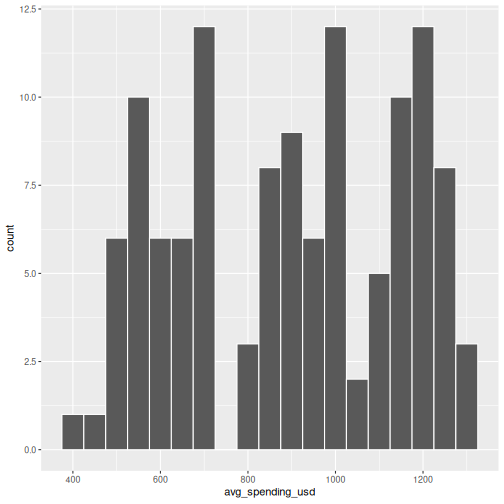
The binwidth argument controls how wide each bin is.
Experiment with different values to see how the shape of the
distribution changes.
Scatterplot: geom_point()
In SPSS: Graphs > Chart Builder, drag variables to x and y axes and select Simple Scatter.
R
ggplot(visitors, aes(x = avg_spending_usd, y = satisfaction_score)) +
  geom_point()
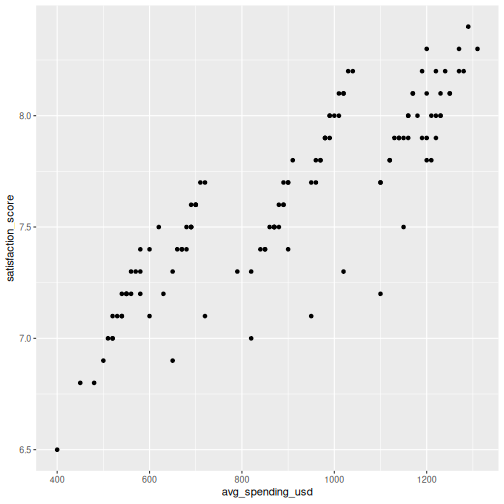
You can map additional variables to aesthetics like color and size:
R
ggplot(visitors, aes(x = avg_spending_usd, y = satisfaction_score,
                     color = origin)) +
  geom_point(size = 2, alpha = 0.7)
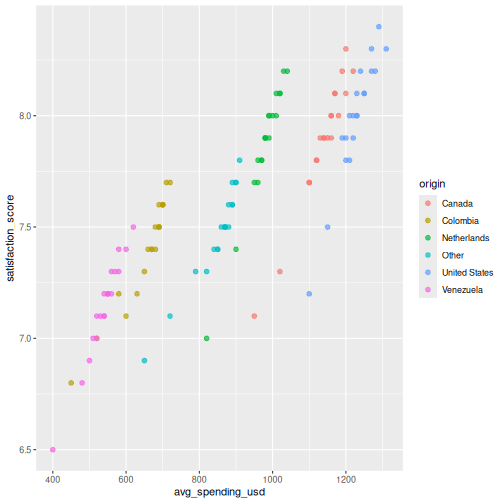
Line chart: geom_line()
Line charts are great for showing trends over time. Let’s compute quarterly totals and plot them:
R
quarterly_totals <- visitors |>
  group_by(year, quarter) |>
  summarise(total_stayover = sum(visitors_stayover), .groups = "drop") |>
  mutate(date_label = paste(year, quarter, sep = "-"))

ggplot(quarterly_totals, aes(x = date_label, y = total_stayover, group = 1)) +
  geom_line() +
  geom_point()
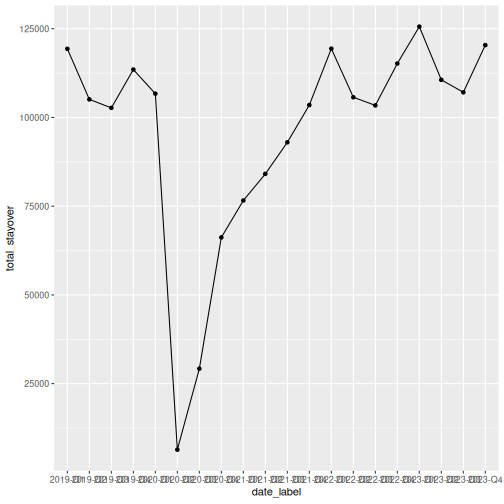
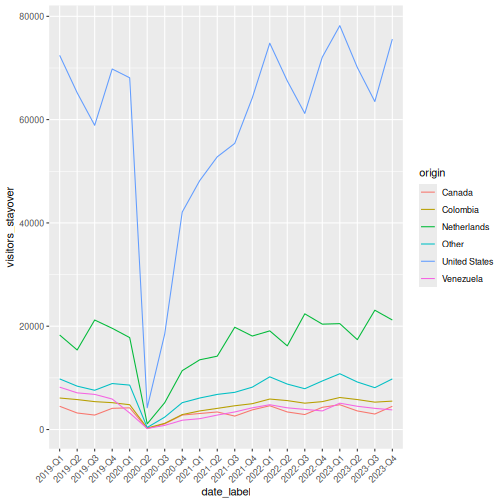
That works, but the x-axis labels overlap. Let’s also see how to plot multiple lines by origin:
R
visitors_by_qtr <- visitors |>
  mutate(date_label = paste(year, quarter, sep = "-"))

ggplot(visitors_by_qtr, aes(x = date_label, y = visitors_stayover,
                             color = origin, group = origin)) +
  geom_line() +
  theme(axis.text.x = element_text(angle = 45, hjust = 1))
Making it publication-ready
So far our plots have been functional but plain. Let’s take a bar chart through the full journey from basic to polished. This is where ggplot2 truly outshines SPSS Chart Builder — every tweak is a single line of code.
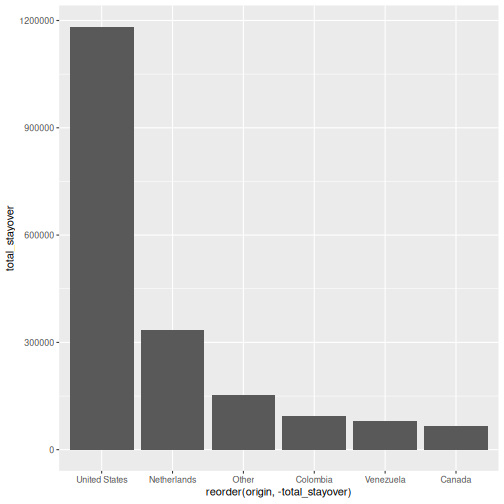
Step 1: Basic chart
R
p <- ggplot(visitors_total, aes(x = reorder(origin, -total_stayover),
                                 y = total_stayover)) +
  geom_col()
p
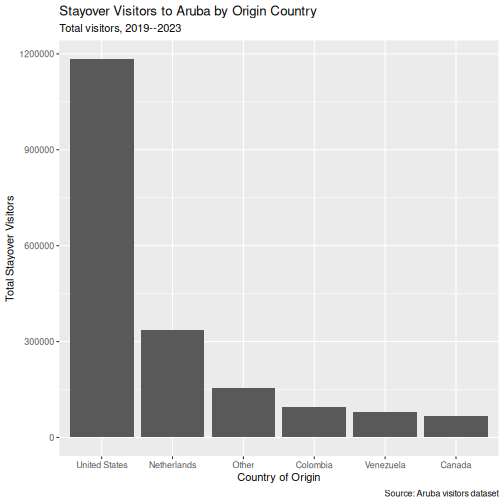
Step 2: Add labels
R
p <- p +
  labs(
    title = "Stayover Visitors to Aruba by Origin Country",
    subtitle = "Total visitors, 2019--2023",
    x = "Country of Origin",
    y = "Total Stayover Visitors",
    caption = "Source: Aruba visitors dataset"
  )
p
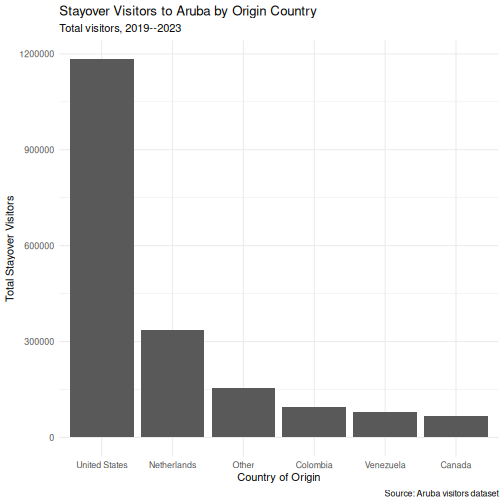
Step 3: Apply a clean theme
R
p <- p + theme_minimal()
p
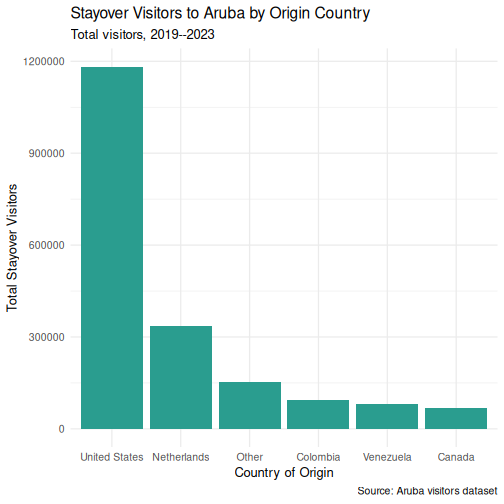
Step 4: Customize colors
R
p <- p +
  geom_col(fill = "#2a9d8f") +
  theme_minimal(base_size = 13)
p
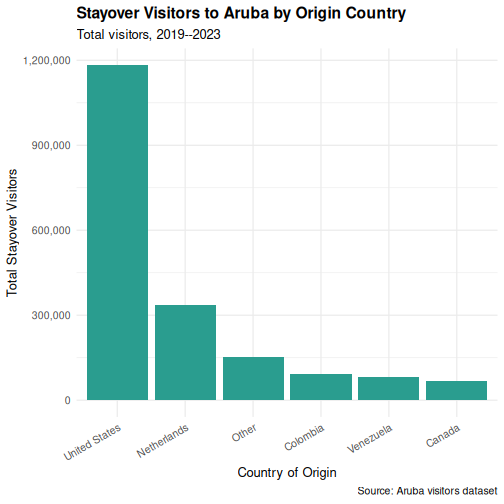
Step 5: Fine-tune text and formatting
R
p <- p +
  scale_y_continuous(labels = scales::comma) +
  theme(
    plot.title = element_text(face = "bold"),
    axis.text.x = element_text(angle = 30, hjust = 1)
  )
p
Saving your plot
Use ggsave() to export your plot as a PNG, PDF, or SVG
file:
R
ggsave("my_plot.png", plot = p, width = 8, height = 5, dpi = 300)
In SPSS you right-click the chart and choose Export —
ggsave() gives you precise control over dimensions and
resolution, which is exactly what journals require.
Faceting: small multiples
Faceting is one of ggplot2’s most powerful features and something SPSS Chart Builder handles poorly. Instead of cramming all groups onto one chart, you split the data into panels — one per group.
R
visitors_annual <- visitors |>
  group_by(year, origin) |>
  summarise(total_stayover = sum(visitors_stayover), .groups = "drop")

ggplot(visitors_annual, aes(x = year, y = total_stayover)) +
  geom_line() +
  geom_point() +
  facet_wrap(~ origin, scales = "free_y") +
  labs(
    title = "Annual Stayover Visitors by Origin",
    x = "Year",
    y = "Total Stayover Visitors"
  ) +
  scale_y_continuous(labels = scales::comma) +
  theme_minimal()
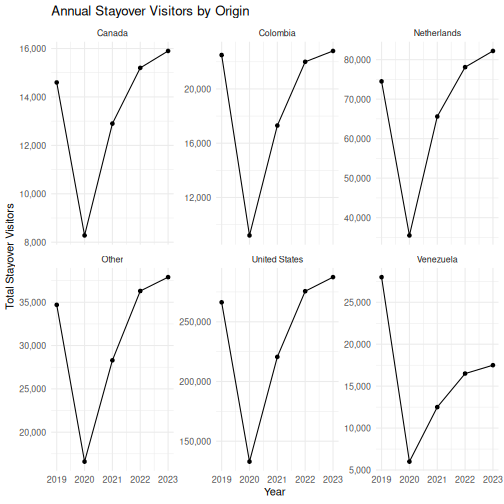
The scales = "free_y" argument lets each panel have its
own y-axis range. This is important when groups have very different
magnitudes (e.g., US visitors vastly outnumber Canadian visitors).
The faceting example is a great place to pause and let learners experiment. Encourage them to try:
-
facet_wrap(~ origin, ncol = 2)to control the layout -
facet_grid(origin ~ .)for a grid arrangement - removing
scales = "free_y"to see the difference
Challenge 1: Build a publication-quality faceted chart
Using the visitors data, create a scatterplot of
avg_spending_usd (x-axis)
vs. satisfaction_score (y-axis), with the following
requirements:
- Color the points by
origin - Add a linear trend line using
geom_smooth(method = "lm") - Facet by
year - Add a proper title, axis labels, and caption
- Use
theme_minimal()and make the title bold
R
ggplot(visitors, aes(x = avg_spending_usd, y = satisfaction_score,
                     color = origin)) +
  geom_point(alpha = 0.7, size = 2) +
  geom_smooth(method = "lm", se = FALSE, linewidth = 0.8) +
  facet_wrap(~ year) +
  labs(
    title = "Spending vs. Satisfaction by Origin Country",
    subtitle = "Each panel represents one year (2019--2023)",
    x = "Average Spending (USD)",
    y = "Satisfaction Score (1--10)",
    color = "Origin",
    caption = "Source: Aruba visitors dataset"
  ) +
  theme_minimal(base_size = 12) +
  theme(
    plot.title = element_text(face = "bold"),
    legend.position = "bottom"
  )
OUTPUT
`geom_smooth()` using formula = 'y ~ x'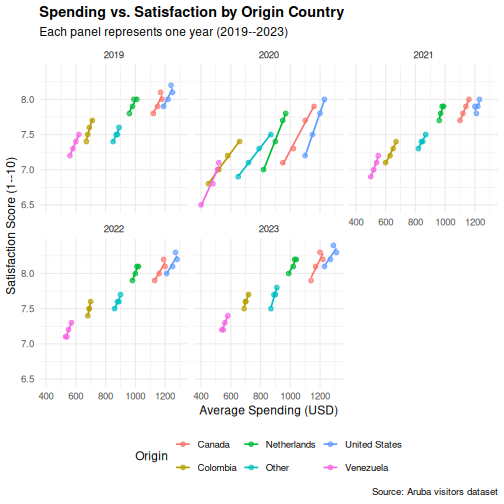
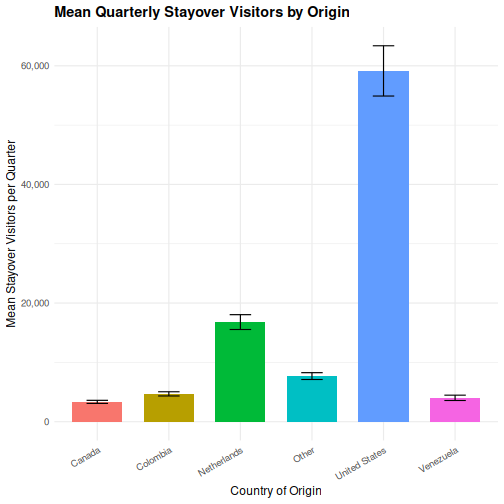
Challenge 2: Recreate an SPSS-style chart
In SPSS, a common chart is a clustered bar chart showing means by
group. Create the R equivalent: a bar chart showing mean
stay-over visitors per quarter for each origin country, with
bars colored by origin. Add error bars using
stat_summary().
Hint: You can use
stat_summary(fun = mean, geom = "col") to compute the mean
within the plot itself, without pre-computing it.
R
ggplot(visitors, aes(x = origin, y = visitors_stayover, fill = origin)) +
  stat_summary(fun = mean, geom = "col", width = 0.7) +
  stat_summary(fun.data = mean_se, geom = "errorbar", width = 0.3) +
  labs(
    title = "Mean Quarterly Stayover Visitors by Origin",
    x = "Country of Origin",
    y = "Mean Stayover Visitors per Quarter"
  ) +
  scale_y_continuous(labels = scales::comma) +
  theme_minimal(base_size = 12) +
  theme(
    plot.title = element_text(face = "bold"),
    axis.text.x = element_text(angle = 30, hjust = 1),
    legend.position = "none"
  )
- ggplot2 builds plots in layers: data, aesthetics, geometry, labels, theme
- Every SPSS Chart Builder chart has a ggplot2 equivalent that offers more control
- Faceting (
facet_wrap) lets you create small multiples — something SPSS Chart Builder handles poorly